
☰ Learn Python Tutorial Menu
Working with Files (CSV and text)
Written by Faisal Adnan · Updated 26 Sept 2026 · 5 min read
A student once brought her office laptop to a Saturday class because a script that worked perfectly at home printed garbage for every customer name at work. Same file, same Python. The difference was one missing argument to open(), and we'll get to it in a minute. Most data an analyst touches starts life as a file. A CSV export from Daraz, a text log from a server, a sheet from accounts. This lesson covers reading and writing text files safely, then the csv module, which handles commas, quotes and headers so you can work with rows as dictionaries.
Opening files with with
with open("notes.txt", "w", encoding="utf-8") as f:
    f.write("Order 1041 shipped\n")
    f.write("Order 1042 pending\n")

with open("notes.txt", encoding="utf-8") as f:
    content = f.read()
print(content)
open() takes a path and a mode. "r" reads (the default), "w" writes (creates or overwrites), "a" appends. The with statement guarantees the file is closed when the block ends, even if an error occurs halfway. And there's the missing argument. Always pass encoding="utf-8". Without it, Windows may pick a different encoding depending on the machine's locale, and Urdu characters or even an accent in a customer name will break. That was the whole bug on that laptop.
In the CSA playground you can create and read files in the working directory just like this. They exist for the duration of the run.
Reading line by line
with open("notes.txt", encoding="utf-8") as f:
    for line in f:
        line = line.rstrip("\n")
        if "pending" in line:
            print("Follow up:", line)
Looping over the file object reads one line at a time, so a 2 GB log never has to fit in memory. f.readlines() gives every line as a list. Use it only for small files.
The csv module
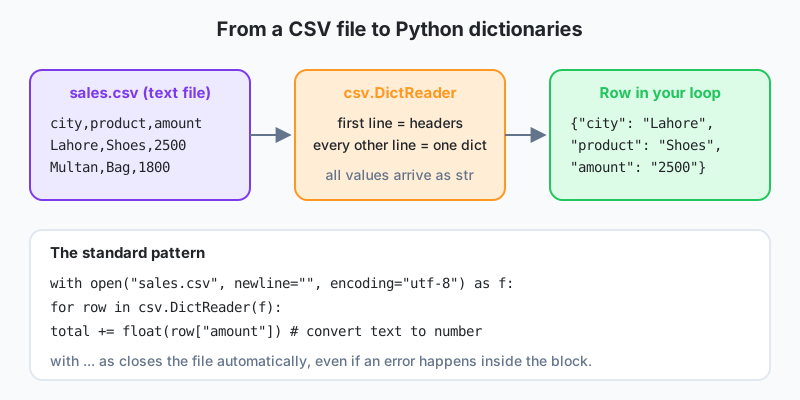
You could split each line on commas yourself, and a product called "Sofa, 3 seater" would break it on the first day. The csv module handles quoting correctly. Let's write a file, then read it back.
import csv

rows = [
    {"order_id": 1041, "city": "Lahore", "product": "Sofa, 3 seater", "amount": 45000},
    {"order_id": 1042, "city": "Multan", "product": "Bag", "amount": 1800},
    {"order_id": 1043, "city": "Lahore", "product": "Shoes", "amount": 2500},
]

with open("sales.csv", "w", newline="", encoding="utf-8") as f:
    writer = csv.DictWriter(f, fieldnames=["order_id", "city", "product", "amount"])
    writer.writeheader()
    writer.writerows(rows)
newline="" is required when writing CSV on Windows, otherwise you get a blank line between every row and a confused colleague. DictWriter takes the column order from fieldnames and writes each dict in that order.
with open("sales.csv", newline="", encoding="utf-8") as f:
    reader = csv.DictReader(f)
    total = 0
    by_city = {}
    for row in reader:
        amount = float(row["amount"])            # everything is text until you convert it
        total += amount
        by_city[row["city"]] = by_city.get(row["city"], 0) + amount

print(f"Total Rs {total:,.0f}")
print(by_city)                                   # {'Lahore': 47500.0, 'Multan': 1800.0}
DictReader uses the first line as the keys and yields one dict per row. Every value is a string, so convert numbers with int() or float(), and wrap that conversion in try/except (Lesson 13) when the data comes from anyone other than you.
Plain reader and writer
If the file has no header, or you prefer lists, use csv.reader and csv.writer. Both accept delimiter=";" for semicolon files, which several Pakistani banks export.
with open("sales.csv", newline="", encoding="utf-8") as f:
    reader = csv.reader(f)
    header = next(reader)                        # skip the header row
    for order_id, city, product, amount in reader:
        print(order_id, city, product)
Worked example, filter and write a new file
import csv

with open("sales.csv", newline="", encoding="utf-8") as src, \
     open("lahore_big.csv", "w", newline="", encoding="utf-8") as dst:
    reader = csv.DictReader(src)
    writer = csv.DictWriter(dst, fieldnames=reader.fieldnames + ["with_gst"])
    writer.writeheader()
    kept = 0
    for row in reader:
        if row["city"] == "Lahore" and float(row["amount"]) > 2000:
            row["with_gst"] = round(float(row["amount"]) * 1.17, 2)
            writer.writerow(row)
            kept += 1

print(kept, "rows written")
with open("lahore_big.csv", encoding="utf-8") as f:
    print(f.read())
Read, filter, add a column, write. That's the shape of most one-off data tasks you'll be handed. The \ at the end of the first line continues the statement so both files open in one with.
Paths and folders with pathlib
from pathlib import Path

data_dir = Path("exports")
data_dir.mkdir(exist_ok=True)
target = data_dir / "sales_2026_09.csv"           # joins paths correctly on any OS
print(target, target.suffix, target.exists())

for p in Path(".").glob("*.csv"):
    print(p.name, p.stat().st_size, "bytes")
pathlib replaces string fiddling with slashes and behaves the same on Windows and Linux. glob("*.csv") lists matching files, which is ideal for looping over a folder of daily exports.
Excel files
The standard library can't read .xlsx. Ask for a CSV export (best), or install openpyxl, or use pandas.read_excel locally (Lesson 22). One thing we've learned the hard way. Many "Excel" files from Pakistani systems are really CSV or even HTML with an .xls extension. Open one in a text editor before you choose a tool.
Why line.split(",") broke on a Lahore seller's file: A Daraz seller downloads a CSV of yesterday's orders every morning. A 30-line script uses
DictReaderto total sales by city, flags orders above Rs 20,000 for a manual fraud check, and writes asummary.csvthe owner opens on his phone. The first version split each line on commas by hand and fell over on a product called"Cable, 2m". Switching to thecsvmodule fixed it for good.
Quick recap
- Always open files with
withandencoding="utf-8". - Loop over a file object to read line by line without loading it all.
csv.DictReadergives a dict per row,csv.DictWriterwrites them back, and both wantnewline="".- CSV values are strings. Convert and validate them.
pathlib.Pathhandles paths, folders and file listing cleanly.
Try it on real files
- Write a CSV of five students with columns
name, class, marks, then read it back and print the average marks per class. - Read
sales.csvfrom this lesson and writeinvalid_rows.csvcontaining any row whose amount cannot be converted to a number (add a couple of bad rows to test). - Use
pathlibto loop over every.csvin a folder and print each file's name and row count.
Lesson 15 of 26
Sign in to track your progress and earn XP for every lesson you finish.
Practice tip: the built-in code runner is being upgraded. Until it is back, copy the examples into any SQL or Python tool you have (for example SQLite, PostgreSQL, MySQL, SQL Server or a free online editor) and run them there. You can keep reading and earning XP here.